You might like:


About this App
MIDI controller/bridge. Send MIDI and SysEx commands over bluetooth BLE and USB.
BLE MIDI Engineer is a MIDI controller and MIDI bridge Android app for sending MIDI and SysEx commands to MIDI devices using Bluetooth Low Energy (BLE) or USB cable connection. Perfect for musicians, producers, and MIDI enthusiasts, this app turns your device into a powerful MIDI controller with customizable buttons and knobs controls.
App Features:
- Bluetooth BLE and USB MIDI Connectivity: Connect to MIDI devices like synthesizers, keyboards, and DAW and send MIDI and SysEx commands.
- Customizable Controls: Create your own interface with controls set as buttons or knobs:
– Button – define MIDI messages for button press and release.
– Button switch – define MIDI messages for button ON and OFF state
– Knob – assign a main MIDI message, with the app sending values from min to max based on knob position for dynamic control.
- Send MIDI and SysEx commands
- Use predefined SysEx templates consisting of keys, messages and labels for knobs and buttons to send easily SysEx commands and customize controls.
- Save and load your custom control layouts and MIDI/SysEx setups.
- MIDI Creator for creating MIDI commands.
- Process bluetooth logs for exporting SysEx commands.
Connection to MIDI device can be done with Bluetooth or USB cable:
Bluetooth (BLE)
1.Turn ON bluetooth on your device.
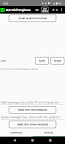
2. In DEVICES tab press [START BUTTON SCAN] button.
3. Wait till your MIDI device is shown and press [CONNECT] button.
4. After device is connected the button will turn in blue color.
5. Then you can send test commands using buttons [SEND TEST MIDI MESSAGE] and [SEND TEST SYSEX MESSAGE].
USB cable:
1. Connect your MIDI device with USB cable.
2. When device is connected on top of DEVICES tab the MIDI device name will be shown.
3. Then you can send test commands using buttons [SEND TEST MIDI MESSAGE] and [SEND TEST SYSEX MESSAGE].
The app has buttons, button switches and knobs controls. For each control command message is defined. Multiple commands can be defined for control by setting messages separated by comma[,]. On control action (press, release or rotation) MIDI commands are sent.
BUTTON
- On button press send command defined with MESSAGE DOWN
- On button release send command defined with MESSAGE UP
BUTTON SWITCH
- On button click sends command defined with MESSAGE ON
- On another button click sends command defined with MESSAGE OFF
Button switch has switch icon below button text used to differentiate between buttons and button switches. In active state button switch background is brighter.
KNOB
- On rotation consecutively sends command defined with MESSAGE and knob value [MIN VALUE – MAX VALUE]. Knobs are rotated using horizontall scroll.
How to set command messages for controls:
1. Go to Menu and turn EDIT MODE on
2. Press control to go to control settings
3. Select control type – button or knob
4. Input the command messages that will be sent:
- for buttons there are two commands. One on button press and second on button release - MSG DOWN and MSG UP
- for knobs there is one command message (MESSAGE) and it is sent along with knob value.
5. For SysEx messages - check SysEx message check box
6. Exit the EDIT MODE using Menu – EDIT MODE or by pressing back button.
How to set command messages for controls:
1. Go to Menu and turn EDIT MODE on. In edit mode the app background is red.
2. Press control to go to control settings
3. Select control type – button, button switch or knob
4. Input the command messages that will be sent:
- for buttons there are two commands. One on button press and second on button release – MSG DOWN and MSG UP
- for button switches there are two commands. One on switch ON and one on switch OFF – MSG ON and MSG OFF
- for knobs there is one command message (MESSAGE) and it is sent along with knob value.
5. For SysEx messages – check SysEx message check box
6. Exit the EDIT MODE using Menu – EDIT MODE or by pressing back button.
App manual - https://gyokovsolutions.com/manual-blemidiengineer