You might like:


About this App
Talk and send messages over WiFi or bluetooth for Wear OS and Android devices
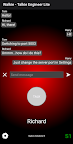
Walkie - Talkie Engineer Lite is an app for talking and sending text messages over local WiFi network or bluetooth connection. The app is for Wear OS and Android devices. One device is set as server and other devices as clients. Push TALK to speak. Write message in message box and push send button to send it.
WiFi CONNECTION TRANSMISSION
WiFi connection allows connection over wifi network. One phone is used as server and other phones are used as clients. There is option in SETTINGS to retranslate messages sent by clients to other clients. Then every phone talks to other phones. When retranslation is not activated then messages from clients are read by server only.
How to activate wifi connection feature:
- Activate SETTINGS – WiFi CONNECTION. Select server or client.
- On server phone server starts automatically
- On client phone by default server is discovererd automatically. You can also choose to manually set WiFi server IP.
- Connect all client phones to server
- Push TALK button. Other phones will start receiving voice.
- Type message and press send button. The other phones will receive message.
- If the client disconnects then when button TALK is pressed it will attempt to reconnect to server every 15 seconds.
BLUETOOTH CONNECTION TRANSMISSION
Bluettoth transmission allows talking and sending messages over bluetooth connection. One phone is used as server and other phones are used as clients. Connection between seven phones is possible (one server and many clients). There is option in SETTINGS to retranslate messages sent by clients to other clients. Then every phone talks to other phones. When retranslation is not activated then messages from clients are read by server only.
How to activate bluetooth connection feature:
- Activate bluetooth on phones
- Pair phones to the phone that will be server
- Activate SETTINGS – BLUETOOTH CONNECTION. Select server or client. You can be asked to allow bluetooth permission for the phone.
- On server phone server starts automatically
- On client phone select device that will be used as a server
- Connect all client phones to server
- Start to input morse code using MORSE button on server phone. The client phones will start receiving morse code.
- Push TALK button. Other phones will start receiving voice.
- Type message and press send button. The other phones will receive message.
- If the client disconnects then when button PRESS is pressed it will attempt to reconnect to server every 15seconds.
During the bluetooth connection in bottom right corner you will see following information:
1. For server - S (number of connected devices)
Colors:
- Red - Server stopped
- Blue - Listening
- Green - Devices are connected. Number of devices is shown next to letter S
2. For clients - C (bluetooth id)
- Blue - Connecting
- Green - Connected
- Red - Disconnected
- Yellow - Disconnected - Server stopped
- Cyan - Reconnecting
- Orange - Reconnecting
App privacy policy - https://sites.google.com/view/gyokovsolutions/walkie-talkie-engineer-lite-privacy-policy